Étape 01
Téléchargez le paquet d'installation
Commencez avec le bouton de téléchargement ci-dessus. Le paquet apparaît dans Téléchargements et vous pouvez l'ouvrir directement depuis ce dossier.
 RIFTSKIN
Injecteur de skins custom pour League of Legends sur macOS
RIFTSKIN
Injecteur de skins custom pour League of Legends sur macOS
Téléchargez l'installeur macOS puis terminez l'installation pour commencer à utiliser vos skins custom sur League of Legends.
Téléchargez puis installez RIFTSKIN sur votre Mac.
Lancez l'application et terminez la configuration initiale.
Après l'installation, vous pouvez importer vos skins custom, organiser votre bibliothèque, lancer le workflow principal, puis acheter Supporter Lifetime plus tard si vous en avez besoin.
See the website, the macOS authorization steps, and the first RIFTSKIN setup in one video.
This walkthrough focuses on the update flow: check for a new version, start the installer, and reopen the latest build cleanly on macOS.
Si macOS ralentit le premier lancement, ce guide visuel montre le parcours à suivre : télécharger le paquet, l'autoriser une fois, terminer l'installation, puis ouvrir RIFTSKIN depuis Applications.
Téléchargez l'installeur .pkg
Autorisez-le une fois dans Confidentialité et sécurité
Lancez l'installeur macOS
Ouvrez RIFTSKIN depuis Applications
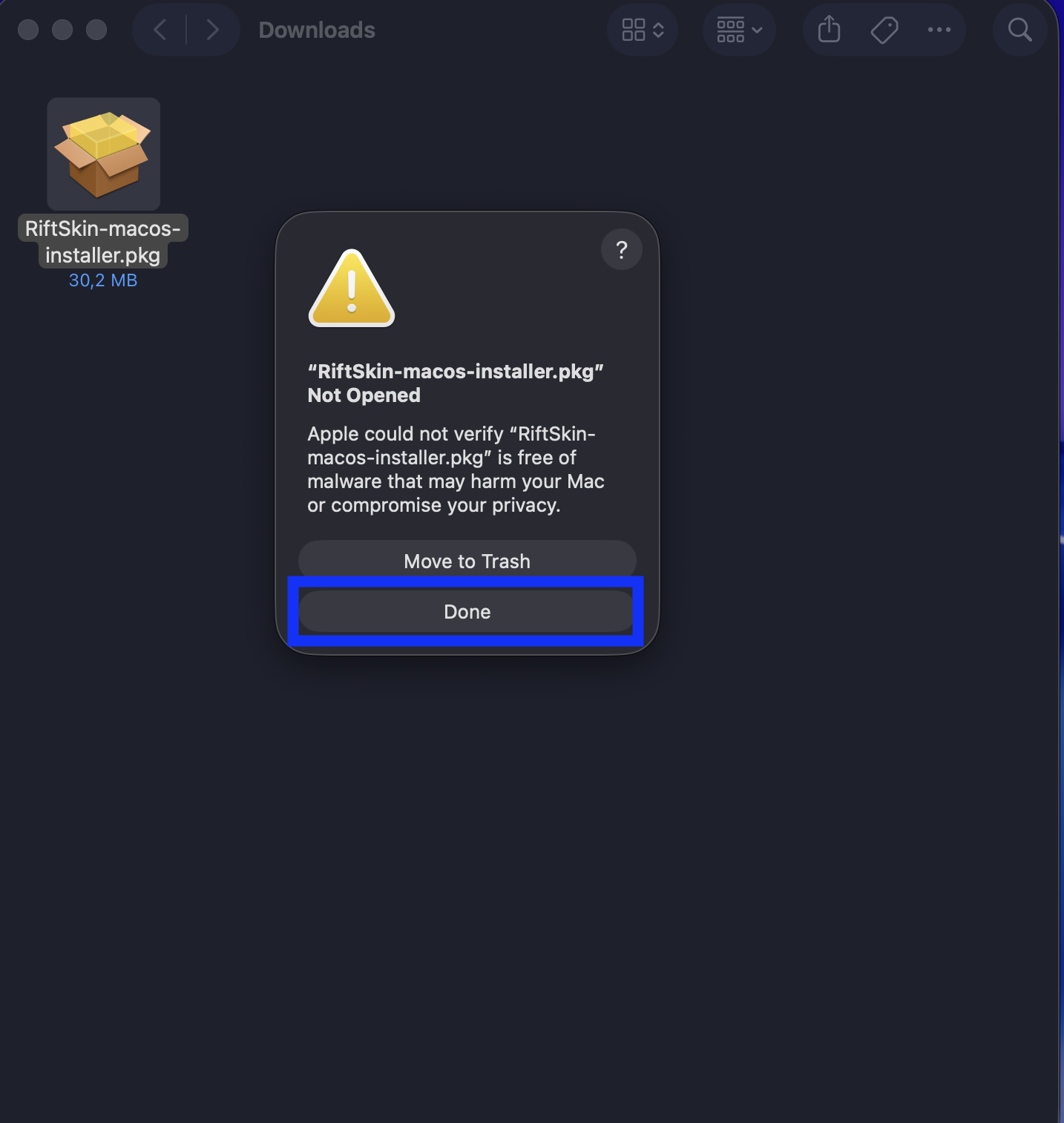
Commencez avec le bouton de téléchargement ci-dessus. Le paquet apparaît dans Téléchargements et vous pouvez l'ouvrir directement depuis ce dossier.
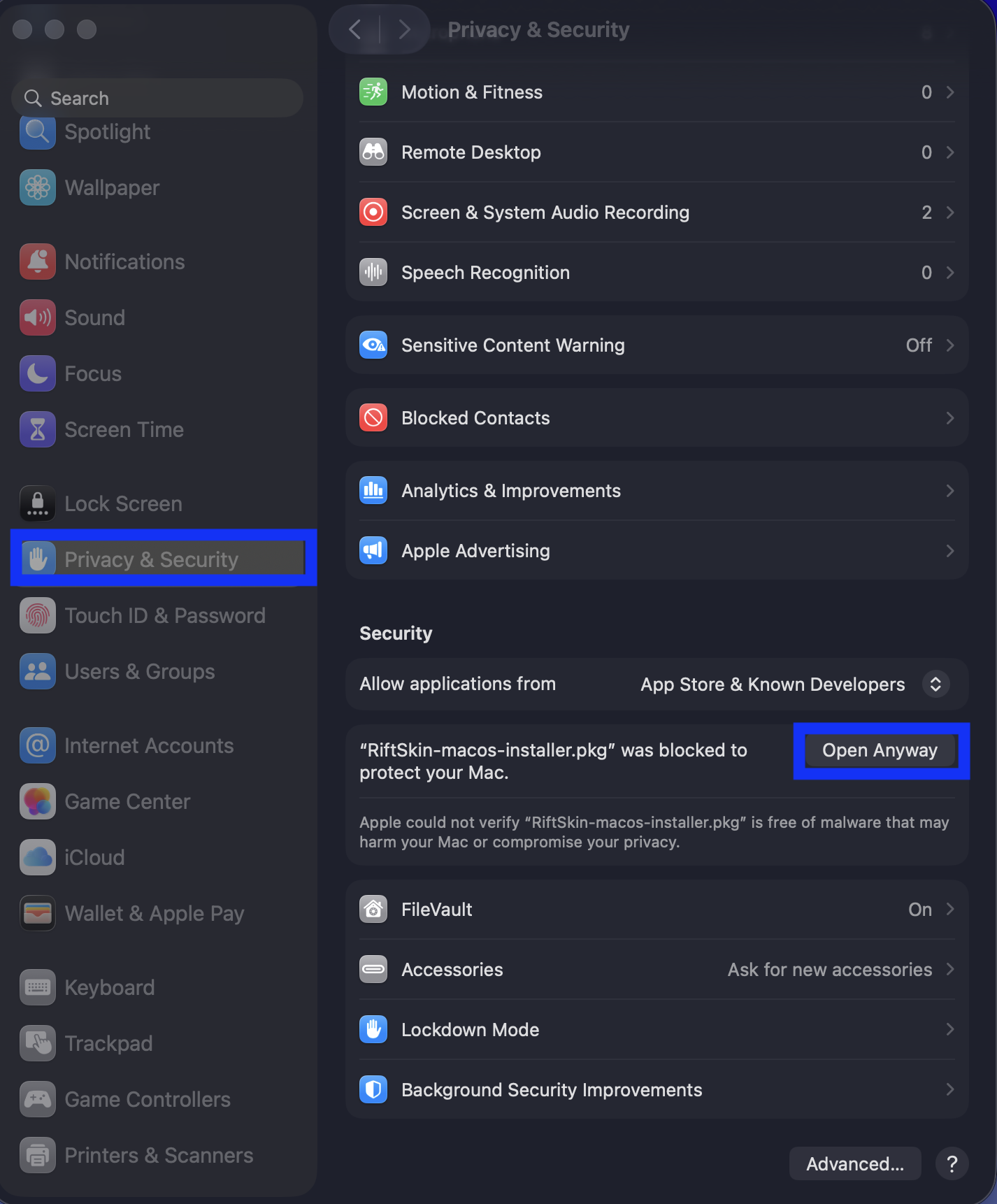
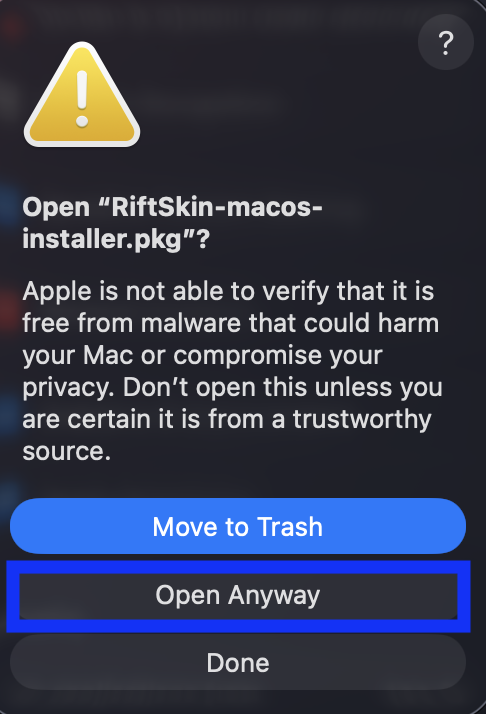
Si macOS bloque l'installeur, ouvrez Réglages système, allez dans Confidentialité et sécurité, puis autorisez RIFTSKIN avec Ouvrir quand même.
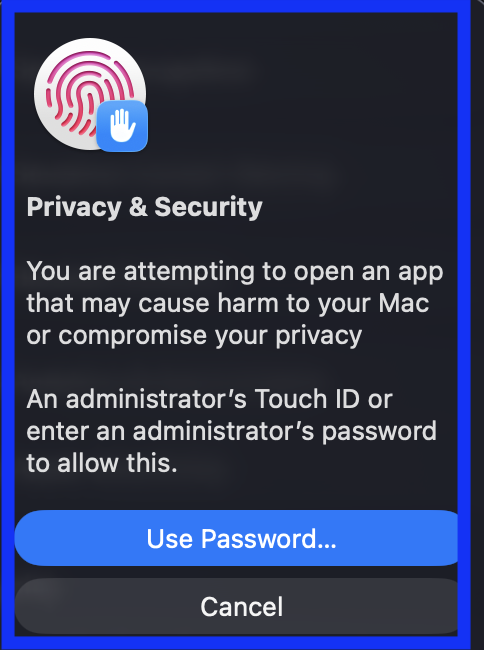
macOS peut vous demander votre mot de passe administrateur ou Touch ID juste après avoir cliqué sur Ouvrir quand même.
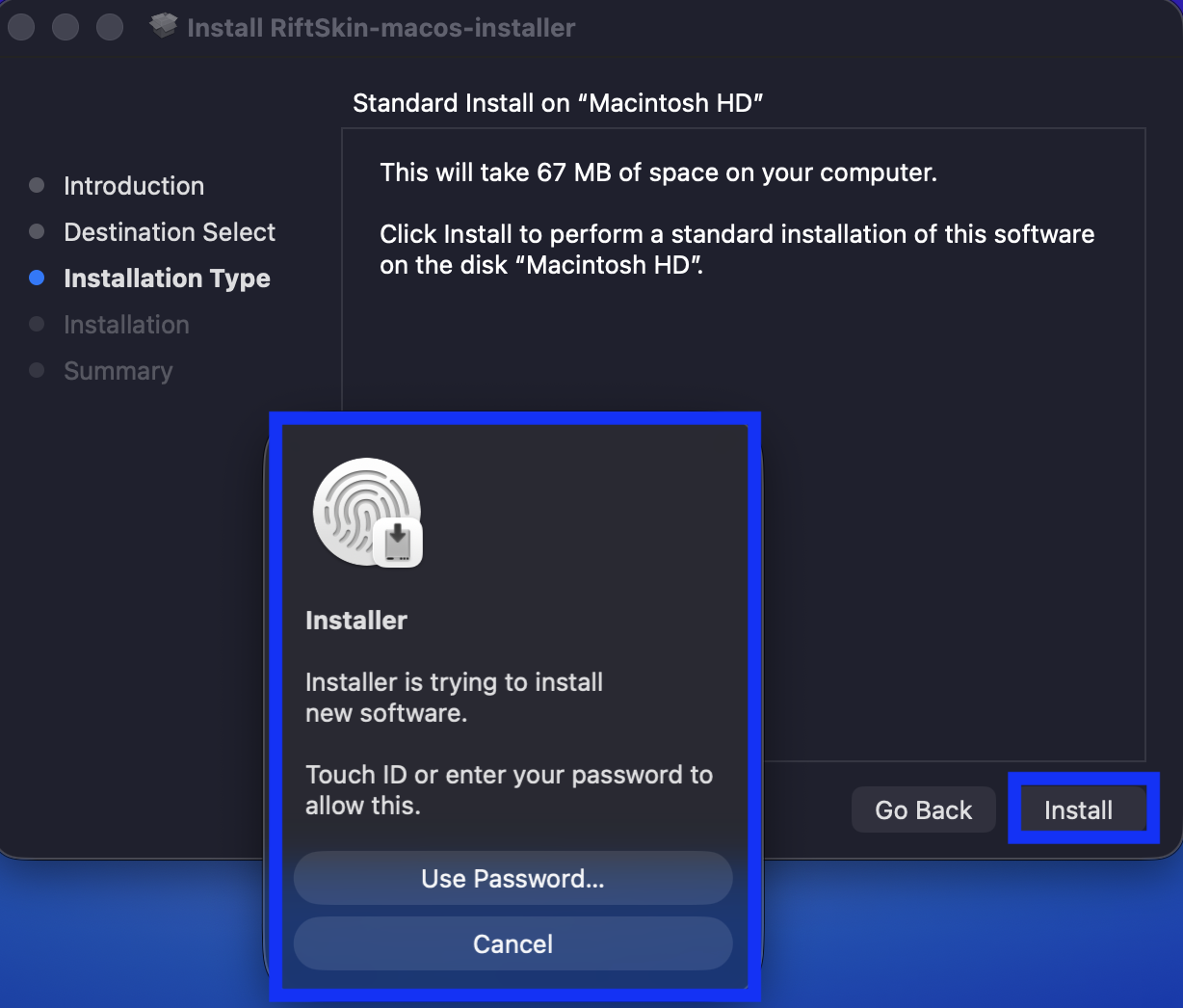
Une fois le paquet autorisé, rouvrez-le et poursuivez l'installation jusqu'à l'écran principal de l'installeur.
macOS peut demander une dernière confirmation par mot de passe ou Touch ID avant de copier RIFTSKIN dans Applications.
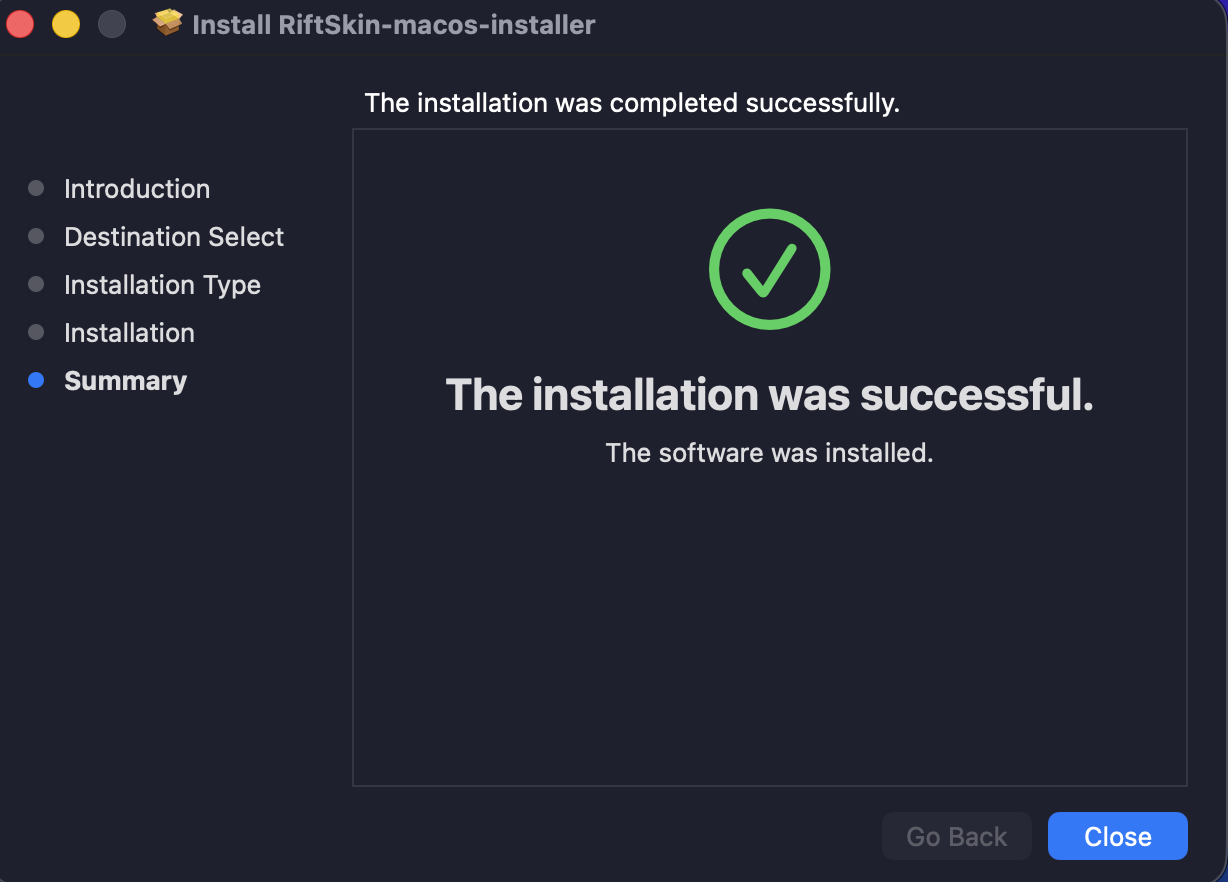
Quand l'écran de fin d'installation apparaît, RIFTSKIN est prêt dans Applications. Fermez l'installeur, lancez l'application, puis terminez la configuration dans le logiciel.